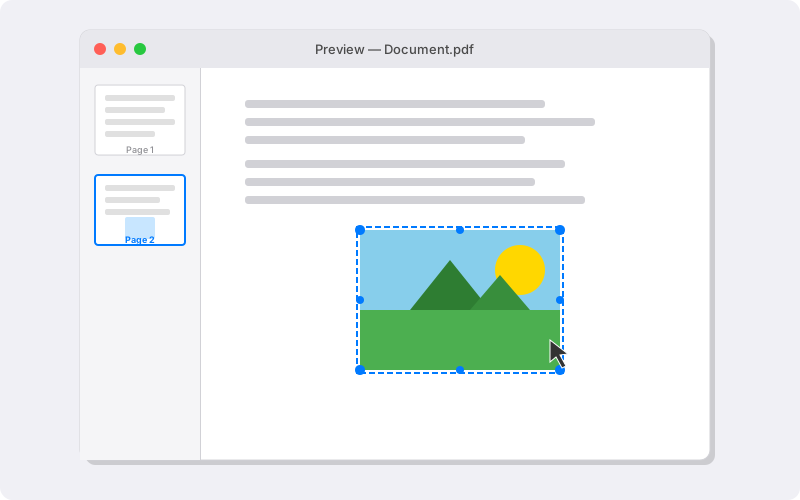
If you have ever tried to paste an image into a PDF using the macOS Preview app, you probably ran into a highly frustrating issue.
Instead of dropping the image onto the page you are currently viewing, Preview insists on pasting the image as a completely new, blank page.
Preview doesn’t have a standard “Insert Image” button. However, there is a hidden workaround that lets you paste a photo as a movable, resizable object directly onto an existing PDF page.
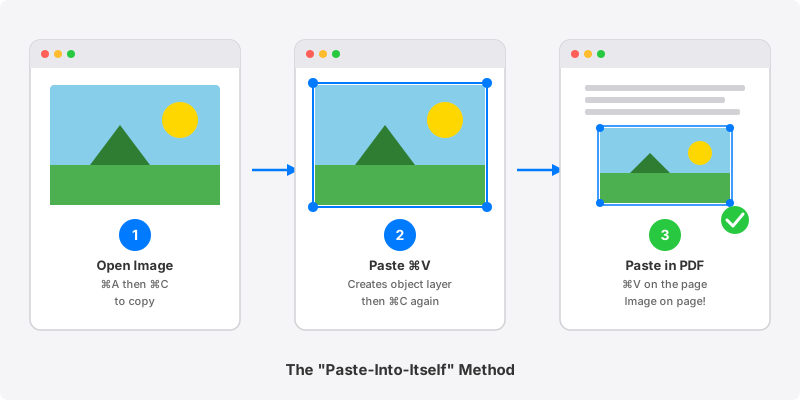
The “Paste-Into-Itself” Method#
Open the image: Double-click your photo to open it in the Preview app.
Copy the image: Press Command + A (⌘A) to select the entire image, then press Command + C (⌘C) to copy it to your clipboard.
Paste it into itself: Without leaving your image window, press Command + V (⌘V) to paste.
How to know it worked: This creates a duplicate “object” layer directly on top of your original image. The new layer will have a bounding box with little blue dots on the corners.
Select and copy the new object: This is the most crucial step! Make sure you explicitly click on that newly pasted image layer so that those blue corner dots are actively selected.
Once it is selected, press Command + C (⌘C) to copy this specific object.
Open your PDF: Switch over to the PDF document you want to edit (also opened in Preview).
Select the target page: Click directly in the middle of the actual PDF page where you want the image to go.
Warning: Do not click the thumbnail in the sidebar, or Preview will default back to creating a new page.
Paste and adjust: Press Command + V (⌘V).
Your image should now drop successfully onto your PDF page!
From there, you can click and drag it into position and use the blue corner dots to resize it to fit perfectly.
When you are finished, just hit Command + S (⌘S) to save your newly updated PDF.