If you often need to resize dozens of images tucked away in various subdirectories.
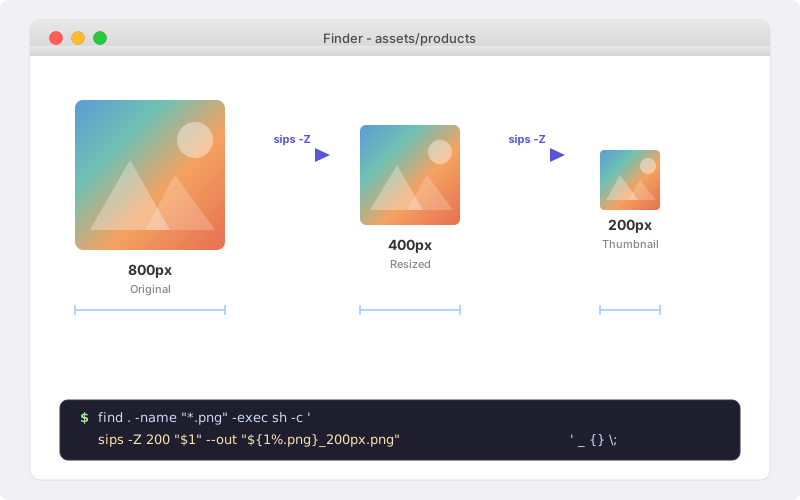
While apps like Photoshop or Lightroom are powerful, they are overkill for a simple task: resizing all png files to a maximum of 200px.
Forget installing heavy dependencies like ImageMagick. macOS comes with a built-in “secret weapon” called Sips (Scriptable Image Processing System).
The Scenario#
You have a project structure like this:
/assets/products/category-a/item1.png/assets/products/category-b/item2.png
You want to resize these to 200px (max side) and save them as _200px.png in the same folders, keeping the originals intact.
The One-Liner Solution#
Open your terminal, navigate to your root folder, and run:
find . -name "*.png" -exec sh -c 'sips -Z 200 "$1" --out "${1%.png}_200px.png"' _ {} \;Breaking Down the Command#
To understand what’s happening under the hood, let’s look at the components:
| Command Part | Purpose |
|---|---|
find . | Searches the current directory and all subfolders. |
-name "*.png" | Filters only the files ending with your specific suffix. |
sips -Z 200 | Resizes the image so the largest dimension is 200px (preserving aspect ratio). |
--out ... | Specifies the output path so we don’t overwrite the original. |
${1%.png}_200px.png | A shell trick to strip the .png extension and append our new suffix. |
Why Sips?#
Sips is remarkably fast because it is optimized for the macOS file system and hardware. Unlike other tools, it:
Respects Color Profiles: It uses Apple’s ColorSync technology.
Zero Install: It has been part of macOS for decades.
Smart Scaling: Using the
-Zflag ensures your images never look “stretched” as it maintains the original proportions.
Pro Tip: If you want to overwrite the original files instead of creating new ones, simply use:
find . -name "*.png" -exec sips -Z 200 {} \;
Summary#
Next time you’re preparing thumbnails for a gallery or optimizing assets for a website, don’t reach for a GUI. The power of the macOS CLI is right at your fingertips.